Visual Timer for Kids: See the Time Left and What Comes Next
A calm countdown your child can read from across the room, with the next step waiting at the end. No app, no sign-up, no ads.

Visual timer
5:00
More options
rosyandhush.com/resources/visual-timer
How to use it
- Set the time and the next step before you say a word. Tap the picture for what really comes next, and change the word if your family says it differently (“Jammies”, “Car seat”).
- Show your child the screen while it’s still full. Point at the color and say the whole plan in one breath: “When the pink is gone, it’s bath time.”
- Press start and step out of the argument. The timer keeps time now, not you.
- At the heads-up, say the next step once: “One more minute, then bath.” The soft chime or the spoken line does it for you if you’re across the room.
- When the color runs out, the screen shows the next step. Read it together and start walking toward it.
Why a timer they can see
A three-year-old can’t feel five minutes. “Five more minutes” is just a sound, and it means something different every time a grown-up says it.
A color that shrinks turns time into something your child can watch. It also takes you out of the countdown. You’re no longer the person who decides that time is up. The color is, and the color doesn’t negotiate.
The picture at the end is the part I care about most. Most timers stop at zero. This one keeps going one step further and shows what comes next, the same idea as a first then board, with a countdown in the “first” spot.
When the timer ends
Most online timers get this part wrong. They ring, flash or play a song, and the end becomes an event of its own. A kid who was already dreading the switch now has an alarm to fight too.
This one ends quietly. The color is gone, the screen shows the next step in big letters with its picture, and you can turn on one soft chime if you want. That’s it. The timer hands the moment back to you and the routine.
Two things I’d hold firm on:
- No extra time once it hits zero. If you need more minutes, decide that before you start. Time added at the end tells your child the end is up for debate.
- Go to the next step right away. The picture on the screen is the cue. Walk over, take a hand, turn on the bath water.
When Eli was four, transitions sent him into a spiral, and I spent most of my energy on warnings. If I could redo those afternoons, I’d spend it on the “then” instead: what comes after done, shown and not only said.
Picking a length
There’s no magic number. What I go by:
- 1 or 2 minutes for the last bit of something fun: one more slide, one more page.
- 5 minutes for most “finish up” moments at home. Long enough to wrap up, short enough that a young kid still sees the color move.
- 10 or 15 minutes for a whole task with an end, like tidying a room or a quiet activity before the car.
Long countdowns are hard to read on any timer, because the color barely moves. Past 15 minutes, a picture schedule of the day usually shows the plan better than one long wait.
On a classroom board or a tablet
Press Full screen and the timer fills the display: the color, the minutes left and the next step, nothing else. It’s built to be read from the back of a classroom, and it runs in the board’s browser with no account and nothing to install. The space bar starts and pauses it, and R resets it.
On a phone or tablet, Keep screen on stops the screen from going dark mid-countdown, where the browser allows it.
If the plan changes halfway through (“Recess is inside today”), tap a new picture. The countdown keeps going, and the new step shows at the end. For days full of surprises, a social story about changes prepares the ground before the timer ever starts.
A timer they can hold
Some kids can't look away once a screen is on, and some rooms don't have one handy. A timer on the shelf does the same job without the glow.
- a 60-minute visual countdown timer: a dial that shrinks as the minutes go, readable from the table, with the beep switched off if you like
- a set of sand timers: for the short waits, like a turn on the swing or the last minute of brushing teeth. Keep them up high for little ones: the glass is not a toy
Some links here are affiliate links. If you buy through one, I may earn a small commission at no extra cost to you. As an Amazon Associate I earn from qualifying purchases.
Pictures: Phosphor Icons (MIT license).
Questions parents ask me about this
Is this visual timer really free?
Yes. There's no app to install, no account, and no ads. Nothing you set leaves your device: your settings stay in this browser, so the timer opens the way you left it.
Can I use it as a classroom timer on a smartboard?
Yes. Open the page in the board's browser and press Full screen. The color, the minutes and the next step are sized to read from the back of the room, and the space bar starts or pauses it.
How long should a transition timer be for a toddler?
There's no rule, and I'd be wary of anyone who gives you one. I use 1 or 2 minutes for the end of something fun and 5 minutes for most finish-up moments. Pick a length you can stick to, and decide it before you press start.
Is a visual timer a good idea for kids with ADHD or autism?
Lots of families of autistic and ADHD kids use one. It doesn't treat anything. It shows time in a way a child can see, so the switch is less of a surprise. Your child's OT or teacher can tell you whether it fits the plan you already have.
Why doesn't it ring when time is up?
Because the end should point to the next step, not to a noise. The screen turns into the next picture and word, and you can add one soft chime or a spoken line if you want a sound.
Does it keep running if my phone locks?
The countdown keeps time from the clock, so it's right when you come back. A locked phone may skip the chime, though. Leave Keep screen on ticked for a countdown your child is watching.
Keep reading
The routines behind this tool, from the blog.

Social Story About Transitions for Surprise Changes
When the routine changes last minute, a social story about transitions softens the panic. See how to use one for surprise days. Start today.

Printable First Then Board: How to Use One in Minutes
Two cards beat a full schedule on hard days. See how a printable first then board cuts meltdowns, how to build one fast, and exact words to say.
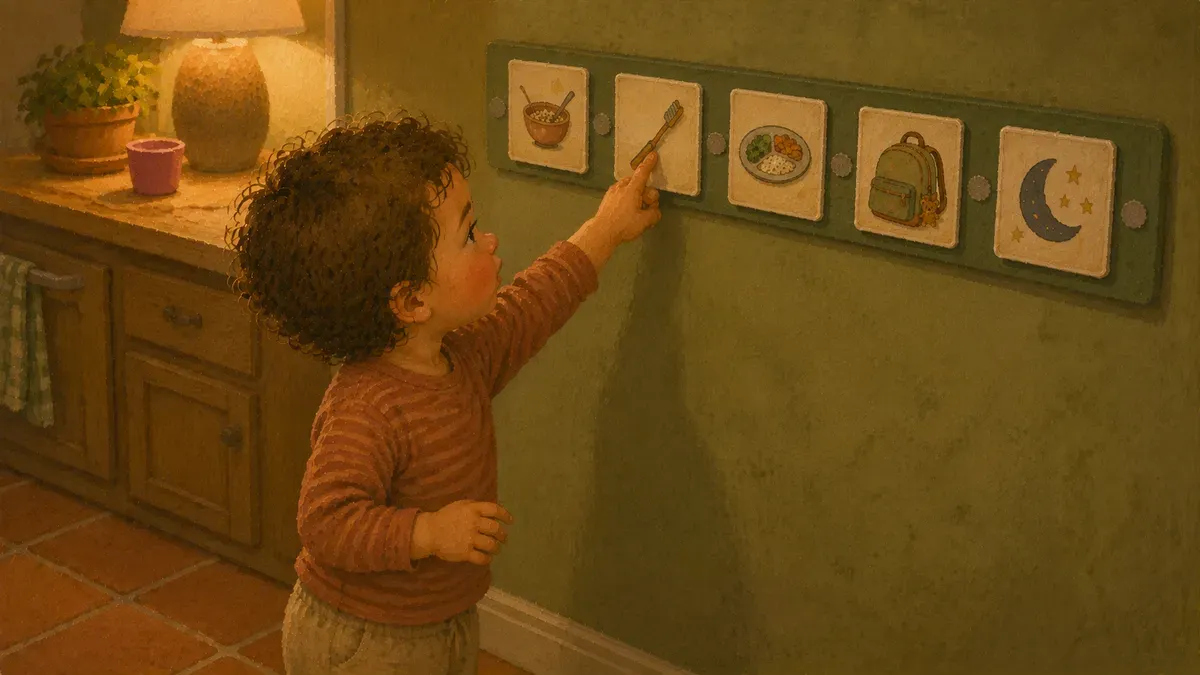
Visual Schedule Autism Home Setup: No-Overwhelm Guide
Visual schedules calm autism home routines. Learn to set up a picture schedule in 3 steps. No overwhelm, no fancy tools.
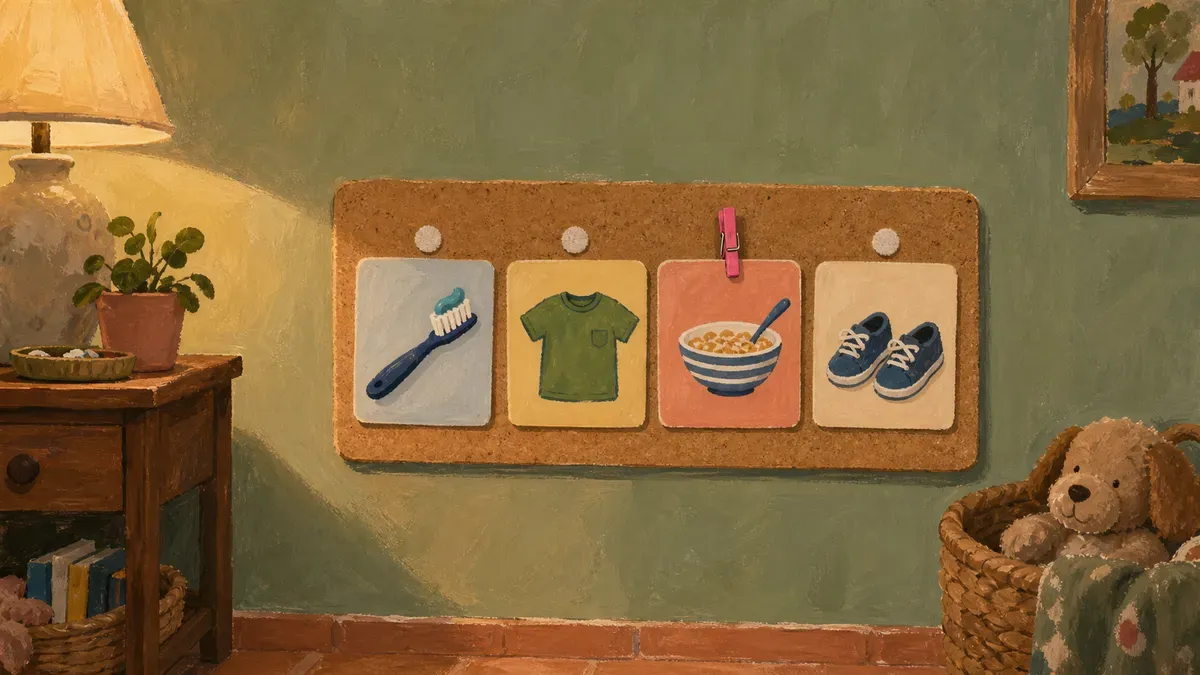
Visual Schedules: A Beginner's Guide for Parents
Most visual schedules fail before day three. Learn how they work and build your first board in 5 steps your child will actually follow. Start today.

Reflection Rules vs Time-Out: What Builds the Skill
Reflection rules teach kids to calm down for real, while time-out just buys quiet. See what actually builds the skill, and where each one fails.

Written by
Nora Hayes
Mom of two and a former preschool aide. I share the screen-free sensory play and calm-down ideas I test at my own kitchen table, plus what the moms in my little meet-up swear by. A parent passing on what works, not a doctor or a therapist.
More about Nora